How it works
Three moving parts. Zero complexity.
PresenceBeam runs silently in the background. People outside your room see the bulb — you don't have to do anything after the initial setup.
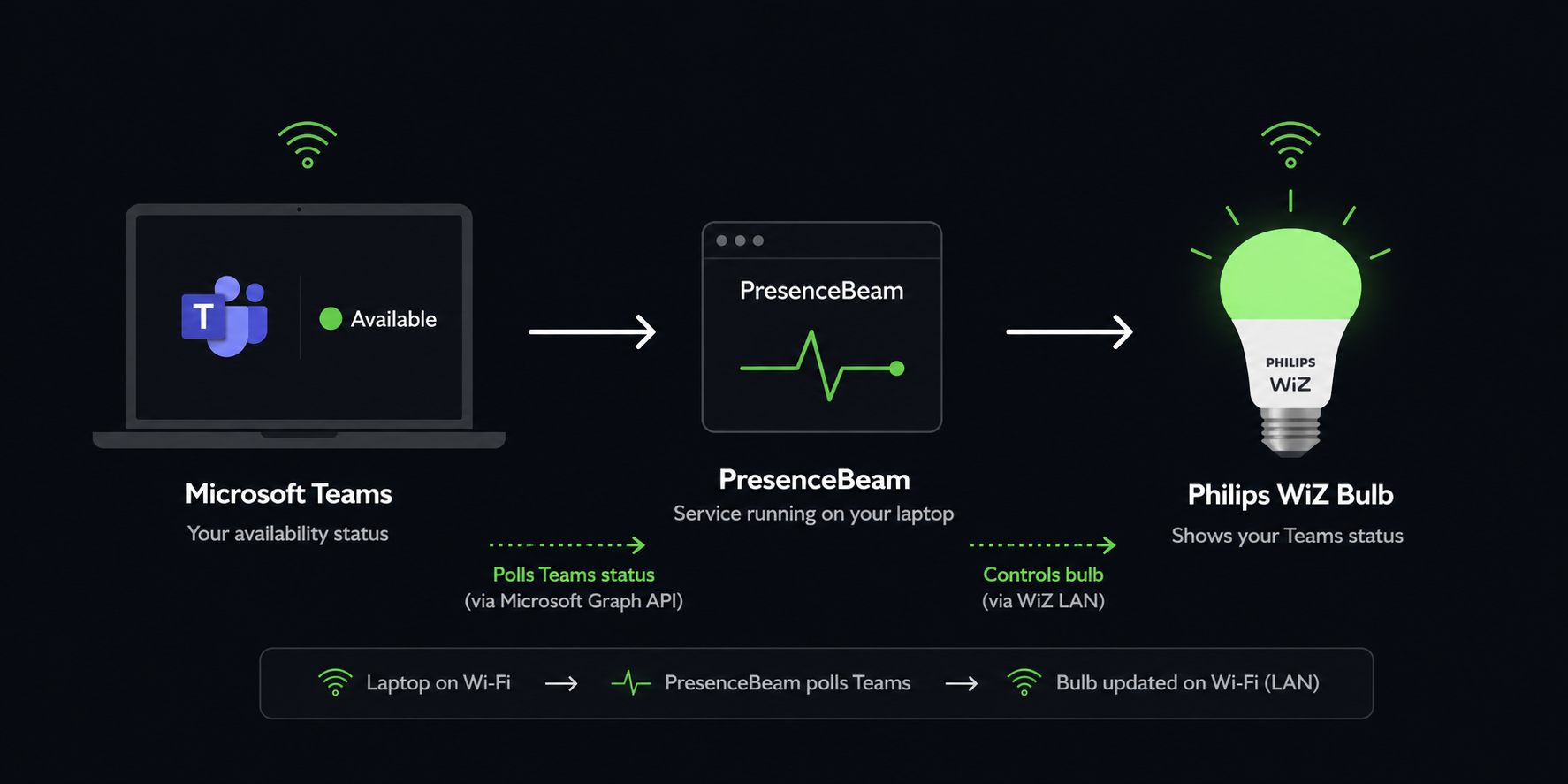
Place a smart bulb outside your work room. It glows green when you're free so people nearby always know the right moment to knock.
How it works
PresenceBeam runs silently in the background. People outside your room see the bulb — you don't have to do anything after the initial setup.
Status mapping
Microsoft Teams presence states map to distinct colors and effects so anyone nearby can read the signal at a glance.
Features
Small details that make it reliable enough to leave running all day.
People outside your room see the bulb change within seconds of your status changing — no delay, no manual signal needed.
Polls every 5 seconds when you're available, every 30 seconds during meetings. Fewer API calls, same responsiveness.
Automatically turns the bulb off and pauses polling after hours. Set your window — it handles the rest.
Microsoft auth token is cached to disk. Sign in once — it runs silently from then on.
One command to run as a background container. Restarts automatically on reboot.
Swap the chat platform or smart bulb by changing two lines. No engine changes required.
Quick start
Docker is the easiest path. Python 3.11+ works just as well if you prefer running it directly.
Go to portal.azure.com →
App registrations → New registration. Add the Presence.Read delegated
permission and enable public client flows. Takes about 5 minutes.
Note down your Client ID and Tenant ID.
# Copy the template
cp .env.example .env

# Fill in these three values
BULB_IP=192.168.1.100
CLIENT_ID=your_client_id
TENANT_ID=your_tenant_id
docker compose up -d --build
docker compose logs -f     # watch for the auth prompt
On first run you'll see a Microsoft device-flow prompt in the logs. Visit the URL, enter the code, sign in — done. Every run after that is fully silent.
Extensible by design
The engine is fully provider-agnostic. Implement one class, wire up two lines in
main.py, and everything else — quiet hours, adaptive polling,
token refresh — just works.
Add any workplace chat platform
Add any smart bulb or strip
See CONTRIBUTING.md for step-by-step guides with full code examples.